Browser Agent Server
Beta Feature: This feature is currently in beta. We welcome feedback and bug reports via GitHub Issues.
Let AI agents like Claude Code control a browser to explore web applications, validate UI functionality, and automate interactions.
Prerequisites
This feature requires an active Xplorer subscription. Go to Help > License to sign in. See Licensing & Sign-In for details.
Quick Start
1. Start the Server
- Click Agent in the left navigation bar
- Select Explore & Automate
- Choose a goal (e.g., “Validate UI is Functional”)
- Edit the instructions with your app’s URL and login details
- Click Start Server
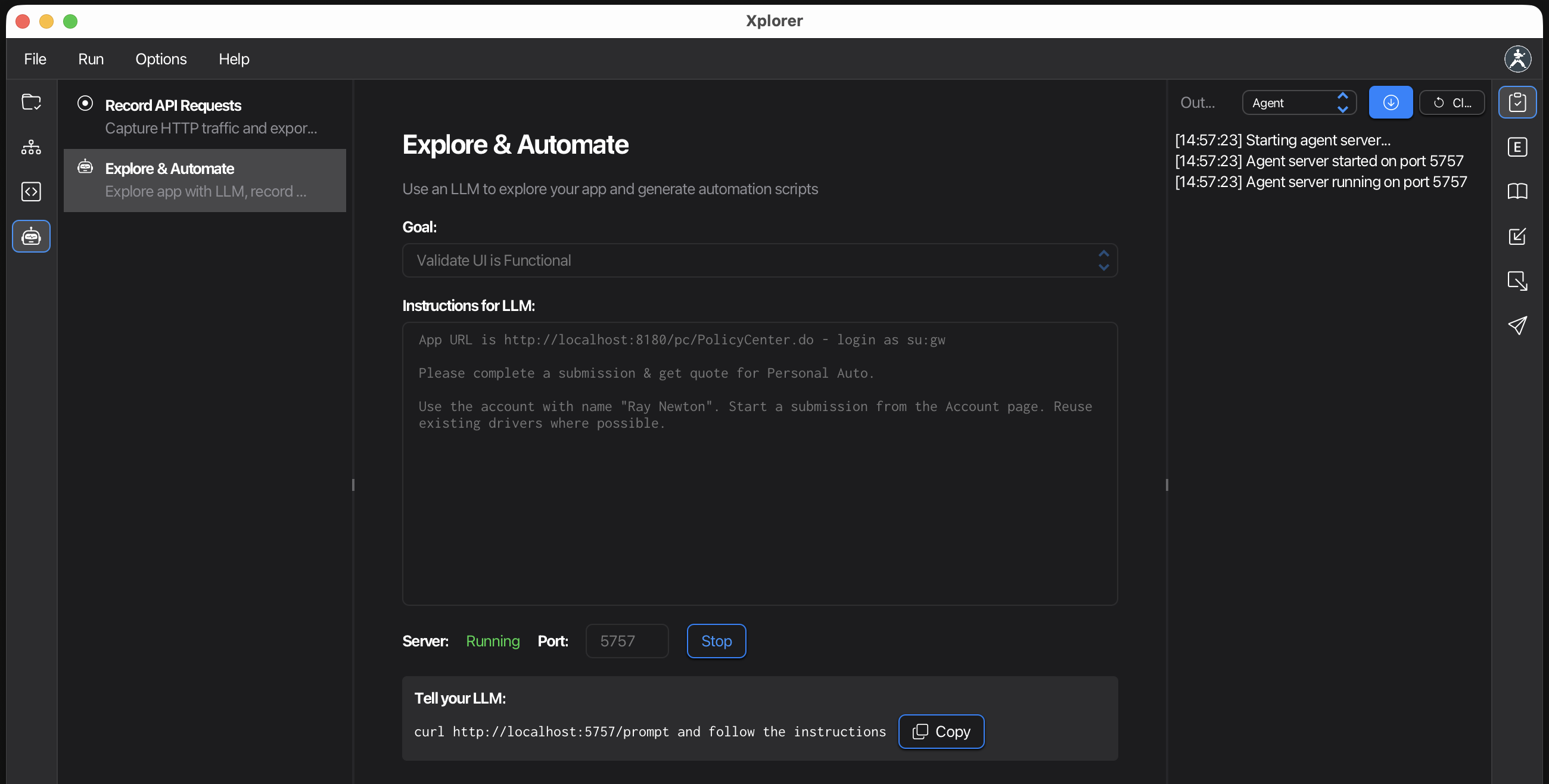
2. Copy the Instruction
Click the Copy button next to “Tell your LLM”. This copies a ready-to-use instruction.
3. Paste into Claude Code
Open Claude Code and paste. That’s it.
Claude will:
- Execute the curl command to fetch the prompt
- Read the complete instructions from the server
- Create a browser and start automating
Example: Validate a Form
Instructions in Xplorer:
## App Info
- URL: https://httpbin.org/forms/post

## Task
1. Navigate to the URL above
2. Fill out the form with test data:
   - Customer name: John Doe
   - Telephone: 555-1234
   - E-mail: john@example.com
   - Size: Medium
   - Topping: Bacon
3. Submit the form
4. Verify the response shows the submitted data
What happens:
- Claude opens a browser and navigates to the form
- Fills each field with the specified data
- Submits the form
- Reports whether the submission was successful
Goal Presets
| Goal | Description |
|---|---|
| Validate UI is Functional | Navigate through your app and verify UI elements work correctly |
| Custom | Write your own instructions for any automation task |
How It Works
The server runs on localhost:5757 and exposes two endpoints:
| Endpoint | Description |
|---|---|
GET /prompt |
Returns a complete prompt with API reference |
POST / |
Executes JavaScript commands in the browser |
When you click Copy, Xplorer provides an instruction that tells Claude to fetch the prompt and follow it. The prompt includes everything Claude needs: command format, workflow patterns, and the full Agent API reference.
Command Log
The Xplorer UI displays real-time traffic between the LLM and the server:
- »> Commands sent by the LLM
- «< Responses from the server
Use this to see what Claude is doing or debug issues.
Using with Other LLMs
The same approach works with any LLM that can execute shell commands:
- Claude.ai (with computer use or artifacts)
- ChatGPT with code execution
- Other AI assistants that support tool use
Simply paste the copied instruction into your LLM of choice.
Stopping the Server
Click Stop Server to shut down. The browser closes automatically.
Security
- Server binds to
127.0.0.1only—not accessible from other machines - No authentication required (trusted local environment)
- LLM only controls the browser, not your file system
Tips
- Edit the instructions to include your app’s URL and login credentials
- Start simple with basic navigation before complex workflows
- Watch the command log to understand what Claude is doing
- Be specific in your instructions for best results
Next Steps
- Recording API Requests - Capture API traffic from browser interactions
- Licensing & Sign-In - Manage your subscription